
Curator webinar slides are available here.
About
Curator is a spreadsheet-style tool for adding metadata to files and entering structured research information, including details about datasets, assays, participants, biospecimens, research tools, and other project-specific information. It is currently available through the Synapse platform.
Users can enter information manually or work with Curie, Curator’s AI chat assistant. Curie can explain metadata requirements, suggest appropriate values, and help populate fields based on the project context. Users can then review, edit, and approve all suggested changes before they are applied.
Curator supports two main workflows:
-
File annotations: Metadata is attached directly to individual Synapse files as annotations.
-
Structured records: Research information is stored in a single spreadsheet, with each row representing one record.
The main difference between these workflows is where and how the information is stored.
File annotations
Annotations are key-value pairs that describe important details about a file. For example, a sequencing file might include annotations such as assayType: RNA-seq, organism: Homo sapiens, and tissue: blood.
If you have used Synapse before, you may recognize annotations by the tag icon shown here 
Synapse annotations are publicly visible when the sharing settings are set to “Anyone on the web” with “Can view” access. Do not include private or sensitive information in annotations.
When adding file metadata in Curator, the two leftmost columns are name, which displays the filename, and id, which displays the file’s Synapse ID (e.g. syn12345678).
Columns to the right of name and id capture additional metadata defined by the associated metadata template and are displayed as the header row. The table below shows an example for RNA sequencing FASTQ files, annotated with metadata fields such as assay, tissue, species, file_type, and sample_id.
|
name |
id |
assay |
tissue |
species |
file_type |
sample_id |
|---|---|---|---|---|---|---|
|
sample1_read1.fastq |
syn12345678 |
RNA-seq |
blood |
human |
fastq |
001 |
|
sample1_read2.fastq |
syn12345679 |
RNA-seq |
blood |
human |
fastq |
001 |
|
sample2_read1.fastq |
syn12345680 |
RNA-seq |
blood |
human |
fastq |
002 |
|
sample2_read2.fastq |
syn12345681 |
RNA-seq |
blood |
human |
fastq |
002 |
Structured Records
Structured records are used to capture research information about datasets, assays, participants, biospecimens, research tools, and other project-specific information.
This information is stored in a single spreadsheet-like record set. Each row represents one record, such as one participant, sample, specimen, dataset, or assay.
Definitions
Record set
A table containing a collection of related records that describe the same type of research information. For example, a record set may contain participants, samples, specimens, datasets, or assays. Record sets can be uploaded from tabular files such as CSV or TSV files.
Record
A single row in a record set. Each row represents one item, such as one participant, sample, specimen, dataset, or assay.
Prmary Key
A user-defined value that uniquely identifies a record within the record set. Examples include participant_id, sample_id, or specimen_id.
Uploading and Updating Records
Columns marked with a key icon are primary key columns. Be sure to complete these columns for every row. Synapse uses the primary key values to identify each record and determine whether your upload should add a new record or update an existing one.
When you upload a record set:
-
A row with a new primary key value is added as a new record.
-
A row with a primary key value that already exists updates the matching record.
-
Existing records that are not included in your upload remain unchanged.
Some record sets use more than one column as a combined primary key. In these cases, complete all primary key columns so Synapse can correctly identify and update the record.
As shown in the table below, record metadata capture additional clinical context (for example, diagnosis, age bracket, and sex) for the files listed above. Record metadata are stored in a separate table so that multiple files can be linked to the same participant or sample without repeating the same information. This keeps metadata consistent and easier to update.
|
sample_id |
diagnosis |
age_bracket |
sex |
|---|---|---|---|
|
001 |
Glioblastoma |
50–59 |
Male |
|
002 |
Glioblastoma |
40–49 |
Female |
Whether metadata is applied as file or record metadata depends on the type of content. In general, when you upload files, you will always have at least file metadata applied. In some cases, you may also have record metadata that describes patients, biospecimens, etc.
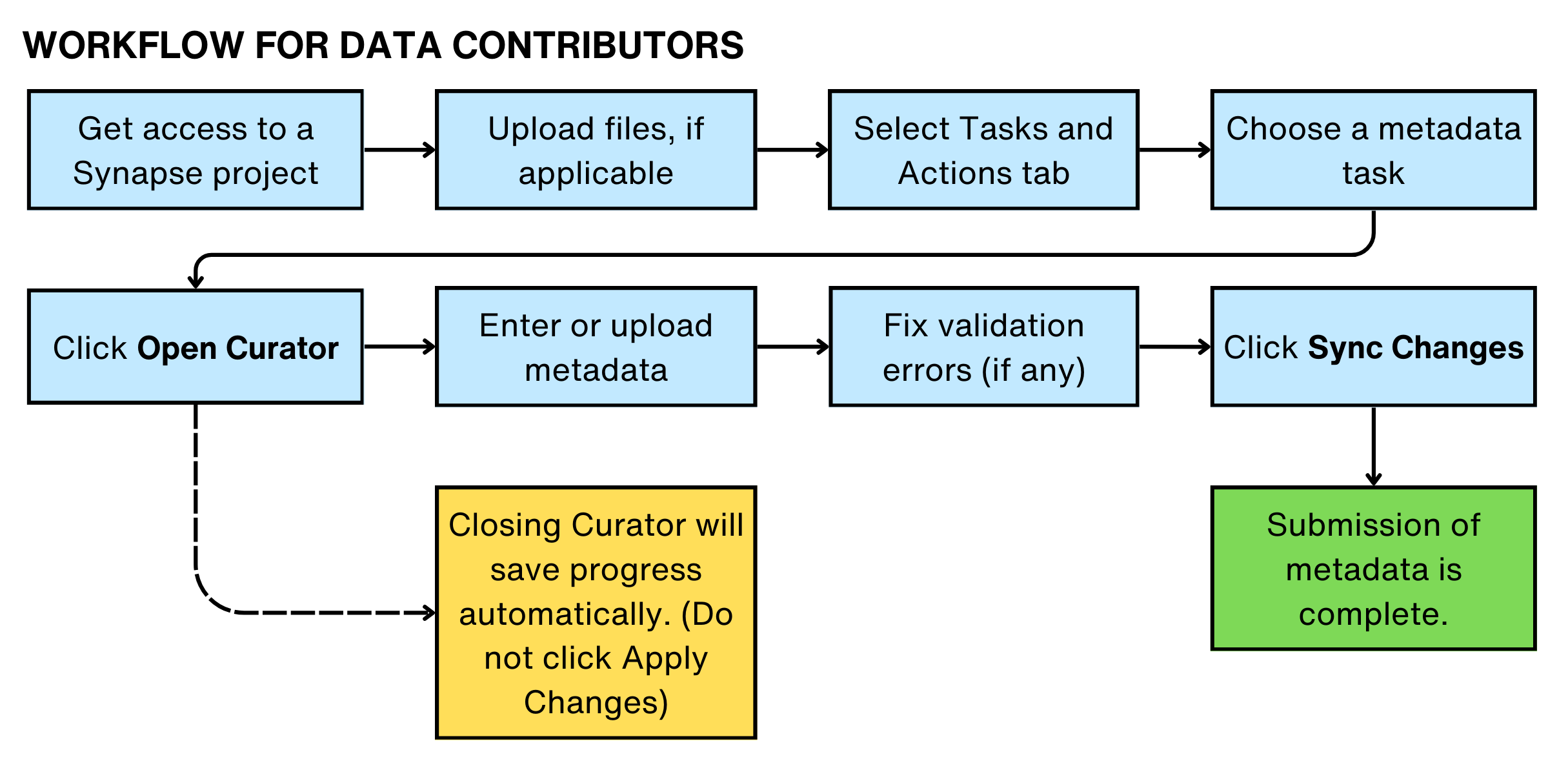
This diagram provides an overview of the metadata contribution workflow in Curator. Additional details and instructions for each step are included in this documentation.
Requirements for using Curator
To use Curator, you must:
-
Complete the Synapse Certification Quiz
-
Have View access (or higher) to the Synapse project, granted by the project Administrator
-
-
Have Edit access (or higher) to any files you will work with, granted by the project Administrator
Setting up Curator
Data Coordination Plan (i.e. Data Coordinating Centers)
If you are part of a Data Coordination plan (i.e. data coordinating center such as ADKP, ARK, ALS, ELITE, Classic, HTAN, MC2, or NF-OSI) your project setup is handled by Sage Bionetworks. Curator is enabled automatically on your behalf, and no additional configuration is required from you.
If you have questions or need support, please contact your consortium’s service desk:
If none of the above apply, please submit questions to the Synapse Help Desk
Free Basic Plan
If you manage your own project on the free Basic plan, Curator is disabled by default and hidden in the user interface. To enable it, follow the python client instructions: https://python-docs.synapse.org/en/stable/guides/extensions/curator/metadata_curation/ .
Navigating to Curator
There are two ways to navigate to Curator:
-
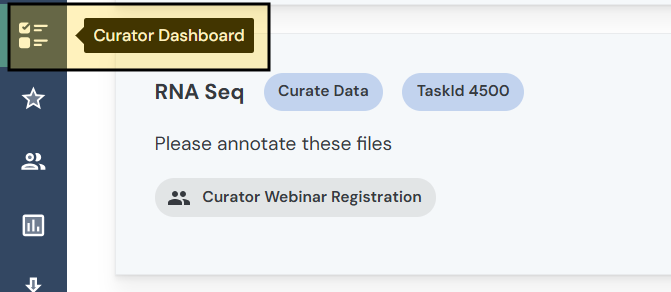
Curator Dashboard: View curation tasks assigned to you across all Synapse projects.
-
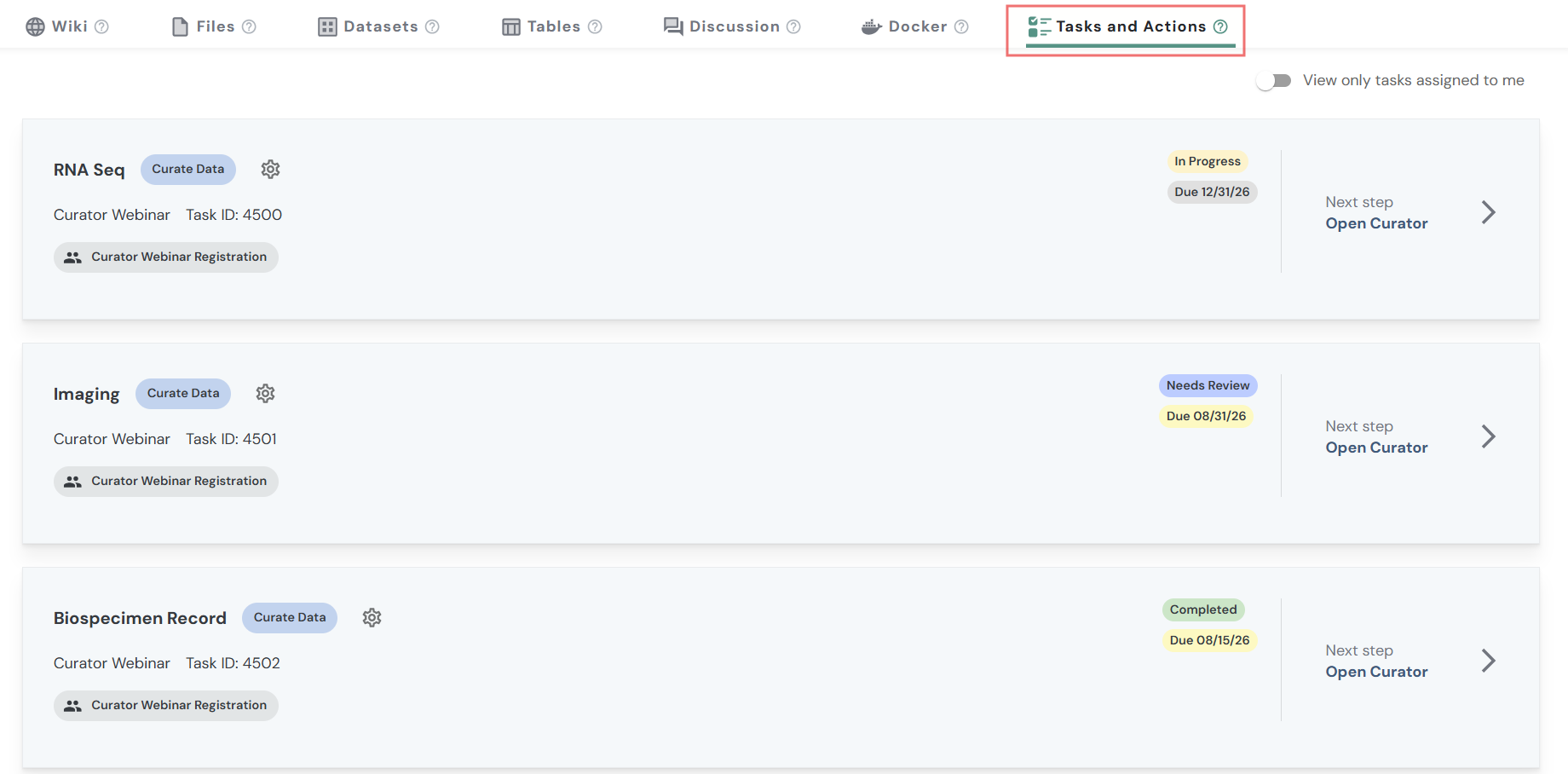
Tasks and Actions tab: Within a Synapse project, select the Tasks and Actions tab to view and manage all tasks associated with that project.
What Are Tasks?
Tasks guide you through the steps needed to complete required or recommended work for your project or data.
How Curation Tasks Relate to Your Project Files
After you upload data, use the Tasks and Actions tab to see what metadata or curation work still needs to be completed.
The tasks you see depend on the data in your project. Here is an example of 4 types of data and 4 tasks you might see in the Tasks and Actions tab.
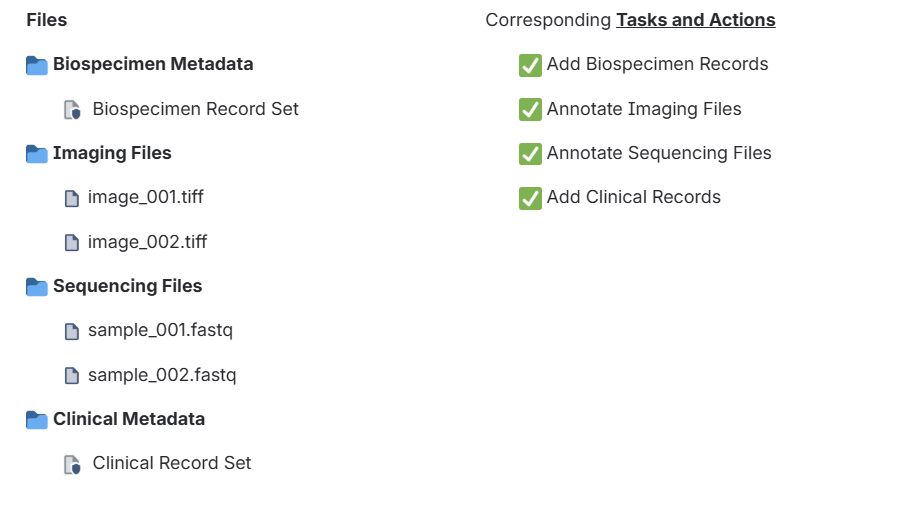
If you are unsure which task to complete, or if you do not see an expected task, please contact your data manager or project administrator for guidance.
Permissions
Synapse permissions are grouped into five levels: View, Download, Edit, Edit and Delete, and Administrator.
To view the Tasks and Actions tab, a user must have at least View permission on the Synapse project. To open curator, the user must have at least Edit permission on every file that needs annotations.
How to check or change sharing settings: For a project, go to the top-right corner and select Project Tools → Sharing Settings. Folders and files also have their own sharing settings. Navigate to the specific folder or file, then open its tools menu and select Sharing Settings.
Collaboration
Q. How do I make a grid session collaborative?
-
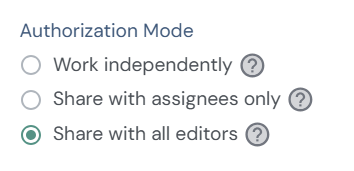
Click the Edit button next to the task
-
Select one of the following authorization modes:
Share with assignees only
Access to the grid session is limited to the user or team listed in the Assignee field. Assignees must also have edit access to all files included in the curation task.
Share with all editors
Anyone with edit access to all files included in the curation task can access the grid session.
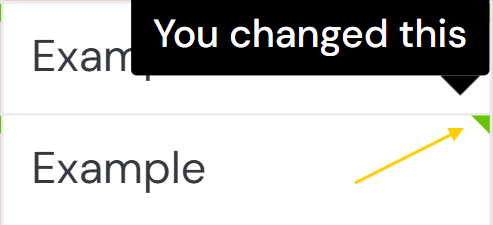
Once collaboration mode is enabled, link sharing becomes available. Copy and paste the URL to share the grid session with other editors.To see who changed a cell, hover over the arrow in the upper-right corner of the cell.
Assignee
The Assignee field helps organize work by assigning a task to a specific user or team, making it easier to filter tasks and track ownership. If the collaboration mode is set to “Share with assignees only,” the Assignee field also determines who can access the grid session. Keep in mind that assignees must also have edit access to all files included in the task.
How to change the assignee: To change the Assignee field in the Tasks and Actions tab, a user must have at least Edit permission on the Synapse project. Hover over the Assignee and click the pencil icon ( :pencil_icon: ).
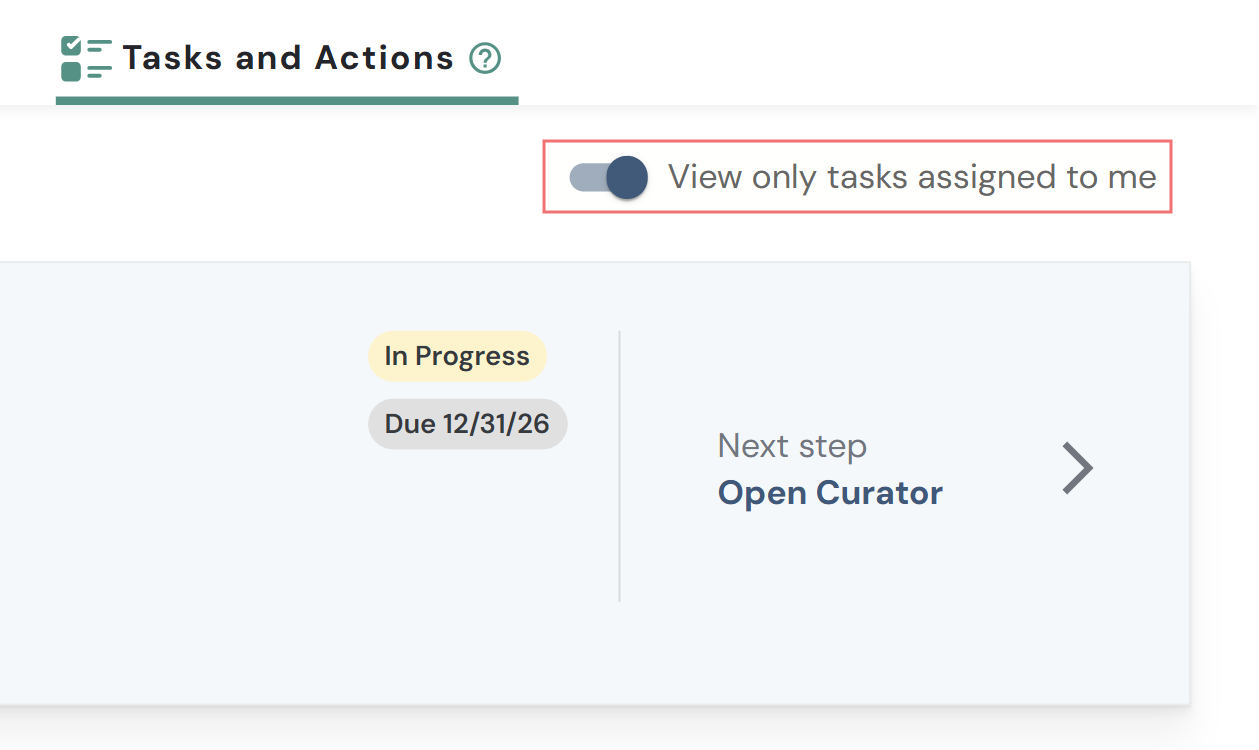
Toggle “View only tasks assigned to me” to show only tasks assigned directly to you or to a team you belong to.
Working in Curator
-
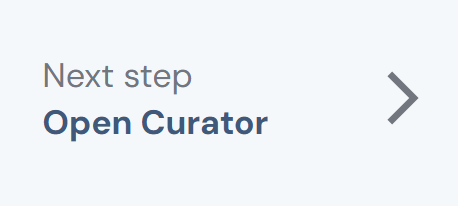
From the Tasks and Actions tab, click Open Curator.
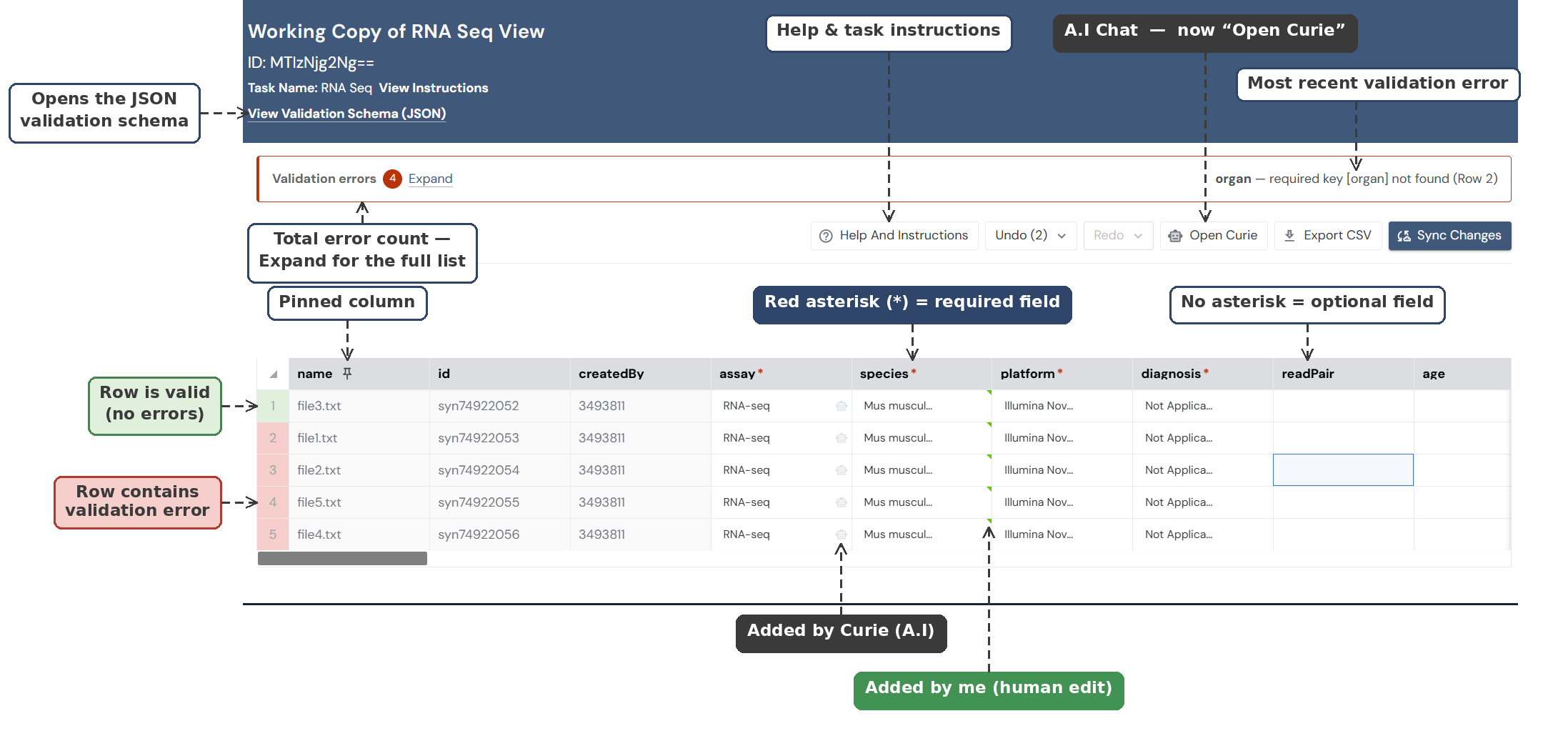
For file metadata, the grid displays the list of files in the leftmost column. For record-set data, the grid displays all records in the dataset, either populated from a previous session or with empty cells if no metadata has been entered yet. Column headers indicate the fields or properties that need to be completed.
-
Column with * = required fields
-
Red cells = missing or invalid values
-
White cells = valid values
Dependencies (conditional fields)
Some fields are conditionally required based on values entered in other fields, as defined by the schema. When a dependency is triggered:-
A column header may add an * to indicate it has become required.
-
Cells in the affected column may change from white to red if values are missing or no longer valid under the new condition.
-
Grid actions
-
Add rows: Select + Add to create a new row.
-
Edit faster: Right-click a cell (or Control + Click) to open the context menu:
-
Copy
-
Cut
-
Paste
-
Insert row below
-
Duplicate row
-
Delete row
-
-
See more fields: Scroll horizontally to view additional columns.
-
Bulk upload: Upload a CSV to populate the grid with metadata (record submissions only).
-
View JSON Schema at the top of the page to review column details.
-
Enter metadata by clicking directly into a cell and typing a value. For fields with a controlled vocabulary, click the cell and select one or more values from the drop-down list.
-
Click Sync Changes for file metadata or Apply Changes button for record metadata.
-
Once applied, your updates take effect immediately. For file metadata, these become Synapse annotations and become the project’s Synapse annotations.
💡 TIP: Try out keyboard shortcuts to move through the table faster.
|
Action |
Windows shortcut |
Mac shortcut |
|
Copy |
Ctrl + C |
Command + C |
|
Cut |
Ctrl + X |
Command + X |
|
Paste |
Ctrl + V |
Command + V |
|
Insert row below |
Enter |
Return |
|
Duplicate row |
Ctrl + D |
Command + D |
|
Go to first row |
Ctrl + ↑ |
Command + ↑ |
|
Go to leftmost column |
Ctrl + ← |
Command + ← |
|
Go to rightmost column |
Ctrl + → |
Command + → |
|
Go to last row |
Ctrl + ↓ |
Command + ↓ |
|
Undo |
Ctrl + Z |
Command + Z |
|
Redo |
Ctrl + Y |
Command + Shift + Z |
|
Delete |
Delete |
Delete |
Uploading a CSV
For record metadata, you can fill out your data in another tool (like Excel or Google Sheets) by downloading a CSV template and uploading it back into the grid.
-
Go to the Tasks and Actions tab.
-
Click Open Curator next to the relevant task to open Curator.
-
In Curator, click Download to export the spreadsheet as a CSV.
-
Open the CSV in your preferred tool and complete it offline.
Important: Don’t change the column headers. -
Back in Curator, click Upload and select your completed CSV file.
How uploads create and update records
Every row must include a primary key column. Curator uses this ID to decide whether each row should create a new record or update an existing one.
When you upload a record set:
-
New IDs (not already in the record set) are added as new records.
-
Existing IDs overwrite (update) the record with the same ID.
-
Records not included in the uploaded file are left unchanged.
Curie, the AI Grid Assistant
Curie is an AI-powered chat assistant designed to help you curate, clean, validate, and populate tabular data directly within a grid. It understands the grid’s schema and can analyze selected rows or the entire dataset to provide guidance, corrections, and transformations.
Curie is especially useful when working with structured data that must conform to specific validation rules or when you want to quickly populate a grid using a project description or other large blocks of text.
Accessing Curie:
To open Curie:
-
Navigate to the grid.
-
Click the Open Chat button in the upper-right corner of the grid. The chat panel will open, allowing you to ask questions or give instructions related to the grid.
-
To close the chat, click the × in the upper-right corner of the chat panel. Closing the chat preserves your current conversation.
-
If you leave the page or refresh your browser, the chat session will end. A new chat session will start when you reopen Curie
-
Curie can make mistakes, so please check all work prior to submitting!
What Curie Can Help With
-
Identify errors, missing values, and duplicate records in the grid.
-
Normalize and clean inconsistent or poorly formatted data.
-
Explore, filter, and summarize data in the grid.
-
Create new columns or derive values from existing data.
Example Prompts:
-
Can you check the selected rows for schema validation errors and explain what’s wrong?
-
These rows have inconsistent date formats in the sample_date column - can you fix this?
-
I’m seeing errors in the species column for this data. What’s the issue, and can you fix the selected rows?
-
For the selected rows, can you generate a sample_id by combining project_id and specimen_number?
-
Are there any common issues across the selected rows that I should address before submission?
💡 Tips
-
Be specific about which rows or columns you want Curie to work on.
-
Use prompt templates for repeatable workflows.
-
Review suggested changes before applying them to ensure correctness.
What Curie can see:
-
Content currently visible to you in the grid, and
-
Information you choose to provide in the chat.
It follows the same permissions and access controls as the rest of Synapse and cannot see anything you do not already have access to. The Grid Agent is hosted in AWS Bedrock and does not use submitted content for model training.
As with any Synapse feature, please use care when working with sensitive information and follow the Synapse Terms of Service.
Metadata Requirements
Consortium or Funder Requirements
If you are part of a larger consortium or are working under a specific funder, metadata requirements are often already defined for you. These requirements ensure consistency across datasets and help make data interoperable within a research domain.
You do not need to configure or apply these requirements yourself. When you fill out the Curator grid, the appropriate metadata schema is automatically applied for you. It can be helpful to be aware of these metadata requirements ahead of time, so you know what information to collect during data generation and preparation.
Below are examples of consortium-managed metadata dictionaries and data models that Curator uses behind the scenes:
Individual Synapse Users
If you are an individual Synapse user and are not part of a larger consortium, we plan to make this easier in the future by offering a set of standard metadata schemas that you can choose from. These schemas will cover common data types and research workflows and will help guide you in providing clear, consistent metadata when uploading your data.
For now, if you’re interested in learning more or working with a more advanced setup, you can explore these resources:
-
Curator MVP setup via Python, for defining custom metadata structures
-
JSON Schemas to see how metadata fields and validation rules are defined behind the scenes
Validating
The grid editor checks your entries as you type and points out missing or incorrect information. Highlighted cells and messages show you what needs attention.
You can still click Sync Changes even if there are messages. This is on purpose, so you can save your work when some information isn’t available yet (for example, if you don’t know a required value or don’t see the right option in the list).
Where to See Validation Errors
-
Row Indicator (Left Panel): A highlighted row indicator means at least one value in that row is missing or invalid.
-
Highlighted Cells: Highlighted cells show exactly which values are missing, invalid, or incorrectly formatted.
-
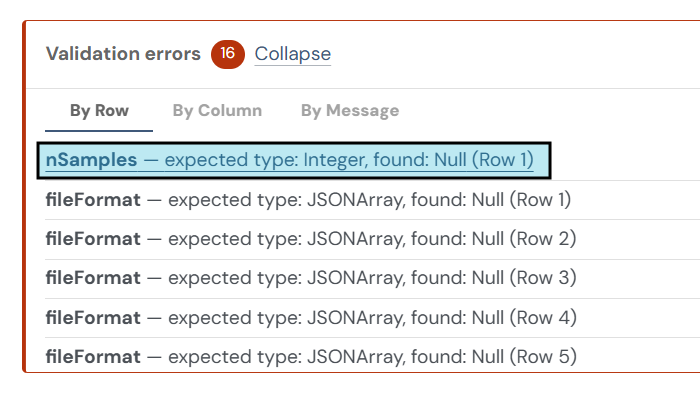
Validation error panel: A panel at the top of the page lists any validation errors found in the metadata grid. Select an error message to jump directly to the affected cell or row. In this example, the validation panel displays 16 metadata errors, organized by row, column, or message. The highlighted error indicates that the nSamples field is missing a required integer value in Row 1.
Resolving Validation Errors
|
Message |
Explanation |
How to fix |
|---|---|---|
|
null is not a valid enum |
One or more required fields in the selected row are missing (null) or left empty, and the field expects a value from a predefined list. |
Populate all required fields (blue columns) with a valid value from the allowed list. |
|
|
The entered value does not match one of the allowed values defined in the metadata dictionary. |
Select a valid option from the predefined list. If the correct term is missing, notify your DCC contact. |
|
Required field |
A required column defined in the schema is missing entirely from the submission. |
Add the missing column and populate it with valid values for all rows. |
|
Cannot convert |
The value entered cannot be interpreted as a whole number. |
Enter a whole number (e.g., |
|
Value |
A decimal or non-integer number was entered where an integer is required. |
Replace the value with a whole number. |
|
Cannot convert |
The value entered cannot be interpreted as a numeric (decimal) value. |
Enter a numeric value (e.g., |
|
Cannot convert |
The value does not match accepted boolean values. |
Use one of the supported values: |
|
String length is less than minimum |
The entered text is shorter than the minimum allowed length. |
Enter a longer value that meets the minimum length requirement. |
|
String length is greater than maximum |
The entered text exceeds the maximum allowed length. |
Shorten the value to meet the maximum length requirement. |
|
String does not match pattern |
The value does not match the required format (pattern). |
Update the value to follow the required format (for example, a specific ID or naming pattern). |
|
Value is less than minimum |
The numeric value is below the allowed minimum. |
Enter a number that meets or exceeds the minimum value. |
|
Value is greater than maximum |
The numeric value exceeds the allowed maximum. |
Enter a number that is less than or equal to the maximum value. |
|
Expected type: |
The value entered is the wrong data type for this column (for example, text entered where a number is required). |
Replace the value with the correct type expected by the column (for example, enter a number instead of text). |
|
[null] is not a valid date. Expected [yyyy-MM-dd] |
The date field is empty or not entered in the required format. |
Enter a valid date using the required format: YYYY-MM-DD (for example, 2024-03-15). |
Saving
Edits are saved in real time as you enter information in the form. If you leave the page and return later, your information will still be saved.
However, these changes are not committed to Synapse as final annotations until you click Sync Changes or Apply Changes
If the update is successful, a green bar at the bottom of the screen will confirm that the sheet has been successfully updated.

Viewing File Metadata
Submitted file metadata for public projects can be viewed by anyone on the web.
-
Open the Files tab in the Synapse project.
-
From the folder tree, navigate to the folder associated with the records.
-
Hover over the tag icon :ann: next to an individual file name to view its annotations.
-
A yellow tag :y: indicates that one or more annotations have invalid metadata.
-
-
To see a complete list, click the file entity and click the :annotation: icon on the top right of the entity page.
Viewing Record Metadata
-
Navigate to the Files tab in the Synapse project
-
Click the appropriate folder associated with the records.
-
Select the record set entity :re: , which will open a preview displaying the associated metadata. Click Download File to download as a csv. Please note: Record data may be controlled access and is dependent on the entity sharing settings.

Troubleshooting
|
Error message |
How to fix |
|---|---|
|
The CSV file cannot be empty |
Ensure the CSV file contains at least one row. If a header is expected, include a header row followed by data. |
|
Expected the first line to be the header but was empty |
Make sure the CSV includes a header row as the first line and that it is not blank. |
|
The CSV header does not match the schema size |
Confirm that the number of columns in the CSV header exactly matches the expected schema. Do not add or remove columns. |
|
The CSV header column “<column>” does not match the schema column “<expected>” at index <n> |
Ensure the column names and their order exactly match the schema or Curator grid. Column order matters. |
|
Unexpected processing error |
Retry the operation. If the error persists, contact support and include the CSV file and details about what you were attempting to upload. |
Report a Bug
If you run into an issue, have a question, or would like to request a new feature for Curator, please submit a support ticket to the Synapse Help Desk
To help us resolve your issue faster, please use the following format.
-
Synapse Project ID (e.g. syn12345678) Provide the Synapse Project ID associated with the issue.
-
Data Folder Syn ID (e.g. syn12345678) Include the Synapse ID for the relevant data folder.
-
URL of Curator Session (e.g. https://synapse.org/Grid:default?sessionId=MTE4NTQ1OA%3D%3D&taskId=1234)
-
Issue Being Experienced Clearly describe the problem, including what happened and what you expected to happen.
-
Steps to Reproduce the Bug List the exact steps needed to reproduce the issue so that the team can investigate it reliably.
-
Supporting Evidence Attach a video recording or screenshots that show the issue. Visual evidence is strongly encouraged and can help speed up troubleshooting.
For questions related to specific projects or Data Coordination Plans, please contact your consortium’s service desk instead:
Frequently Asked Questions
What features are available today?
Below is a summary of features available today and under construction.
|
Feature |
Status |
Notes |
|---|---|---|
|
Spreadsheet-style grid editor |
✅ Available |
Row-and-column interface for metadata entry on Synapse |
|
File metadata (Synapse annotations) |
✅ Available |
Metadata attached directly to files |
|
Record metadata (record sets) |
✅ Available |
Separate tables for participants, samples, etc., with primary keys |
|
Project-level curation tasks |
✅ Available |
Shared tasks visible to all collaborators |
|
Required versus optional field indicators |
✅ Available |
* = required no asterisk = optional |
|
Real-time validation while editing |
✅ Available |
Highlights missing/invalid values as you type |
|
CSV export |
✅ Available |
|
|
CSV upload |
⚠️ Limited |
Upload CSV is available for record metadata spreadsheets, but not file. |
|
Autosave during grid session |
✅ Available |
Drafts saved automatically |
|
Sync Changes to commit to Synapse |
✅ Available |
Explicit submission step |
|
Permission access control |
✅ Available |
Follows Synapse project permissions |
|
Curie (AI Grid Assistant) |
✅ Available |
Chat assistance for cleaning, validating, and populating data |
|
Schema inspection (View Validation Schema) |
✅ Available |
JSON schema view for advanced users |
|
Consortium-managed metadata schemas |
✅ Available |
Applied by Sage Bionetworks for Data Coordination projects |
|
Browser search (Ctrl/Cmd + F) |
✅ Available |
|
|
Simultaneous (multi-user) editing |
✅ Available |
Available for grid sessions using one of the collaboration modes: Share with assignees only or Share with all editors |
|
Real-time user presence indicators |
✅ Available |
|
|
Version history / rollback in UI |
🚧 Under Construction / Planned |
Previous grid versions not viewable |
|
Shareable grid session URLs |
✅ Available |
Available for grid sessions using one of the collaboration modes: Share with assignees only or Share with all editors |
|
Built-in grid search/filter tools |
🚧 Under Construction / Planned |
Planned improvement over browser search |
|
Self-serve schema selection for individuals |
🚧 Under Construction / Planned |
Standard schemas planned for non-consortium users |
The value I need is not in the valid-value list. What should I do?
If the term you need does not appear in the valid-value list, go ahead and submit your data using the appropriate value. Then, notify your data manager or consortium contact that the term is missing from the metadata dictionary. They can review the request and update the list if the term is appropriate to add.
Is Synapse updated immediately as I edit the grid?
No. The grid functions as a draft workspace. Your edits are saved as you work, but metadata is not submitted to Synapse until you click Sync Changes or Apply Changes.
Why do I only see the Tasks and Actions tab on certain Synapse projects?
The Tasks and Actions tab is hidden if there are no curation tasks.
If you believe you should see the Tasks and Actions tab, please contact the appropriate portal help desk.
If none of these apply, please submit questions to the Synapse Help Desk
Glossary
Curator
Synapse feature for completing metadata in a spreadsheet-style grid.
File metadata
Metadata attached directly to Synapse files (stored as annotations).
Metadata template
Configuration that defines which metadata fields/columns appear in a sheet.
Record set
Table containing a collection of related records (e.g., participants or samples).
Record metadata
Metadata stored in tables to describe study entities (e.g., participants, samples, specimens).
Schema
Definition that specifies the structure, fields, data types, relationships, and validation rules for metadata. JSON schema is a popular format.
Spreadsheet-style grid
Row-and-column interface for viewing and editing metadata.
Synapse Annotations
Public key–value metadata fields associated with Synapse entities.
Sync Changes
Button that commits grid edits to Synapse as submitted metadata.
Task
Guided action item for completing required or recommended project/data steps.
Tasks and Actions tab
Synapse project tab where tasks and related metadata sheets are accessed.
Additional Resources
May 2026 Curator Webinar - PDF